





How to Fix Blurry QR Code & Barcode Online & PC | Scannable
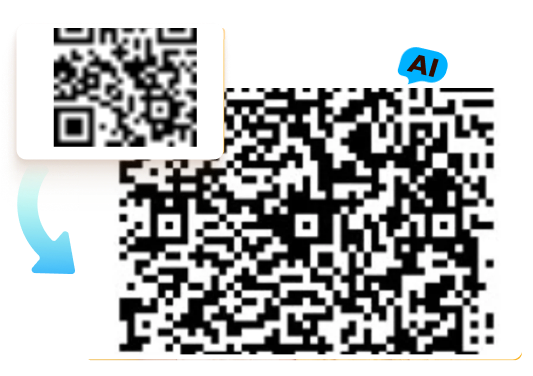
Although QR codes and barcodes make it easy for users to access websites, information, and promotions, they can quickly become a headache when the QR code or barcode appears blurry. If you’re struggling with a “QR code blurry” problem, this guide will show you the most effective ways to fix blurry QR codes online and on PC.

Part 1: Why Is QR Code Blurry?
A QR code may appear blurry or not scan correctly for several reasons, which can be related to the creation of the QR code, the printing or display process, or the condition of the code itself. Here are some common reasons why a QR code might appear blurry:
Low-Quality Image:
If the QR code was generated or displayed as a low-resolution image, it can appear blurry, making it difficult for QR code readers to recognize and decode it.
Printing Issues:
When printing a QR code on physical media, such as paper or packaging, issues like poor ink quality, smudging, or a low-quality printer can result in a blurry code.
Scaling:
Enlarging or reducing the size of a QR code without maintaining the correct aspect ratio can cause blurriness. QR codes should ideally be printed or displayed at their intended size for optimal clarity.
Damage or Distortion:
Physical damage or distortion to the QR code, such as creases, tears, or smudges, can make it appear blurry and may prevent successful scanning.
Encoding Errors:
Mistakes in the creation of the QR code, such as incorrect data encoding or incorrect error correction settings, can result in a code that is difficult to read.
Lack of Contrast:
A QR code should have sufficient contrast between the dark and light areas. If the contrast is too low, it can lead to blurriness and make it challenging for QR code readers to distinguish the patterns.
Environmental Factors:
Poor lighting conditions or glare in the environment where the QR code is scanned can affect its clarity and scanability.
In many cases, the blurriness of a QR code can be resolved by ensuring its proper creation, handling, and display.
Part 2: How to Fix Blurry QR Code Image on Pc?
After understanding the common reasons why a QR code becomes blurry, you may still need a tool that can quickly restore its clarity. That’s where HitPaw FotorPea (formerly HitPaw Photo Enhancer) comes in — it helps you repair low-quality QR code images, giving you a fast and reliable way to produce a clear, scannable result.
Key Features of HitPaw FotorPea
- Enhance and restore blurry QR codes with high clarity, supporting up to 8K quality
- Remove noise and improve brightness for a cleaner, more professional-looking QR code
- Repair damaged QR code images by fixing scratches, artifacts, and imperfections
- Use AI image generation to create a completely new, high-quality QR code based on your needs
How to Unblur a QR Code with HitPaw FotorPea (Step-by-Step Guide)
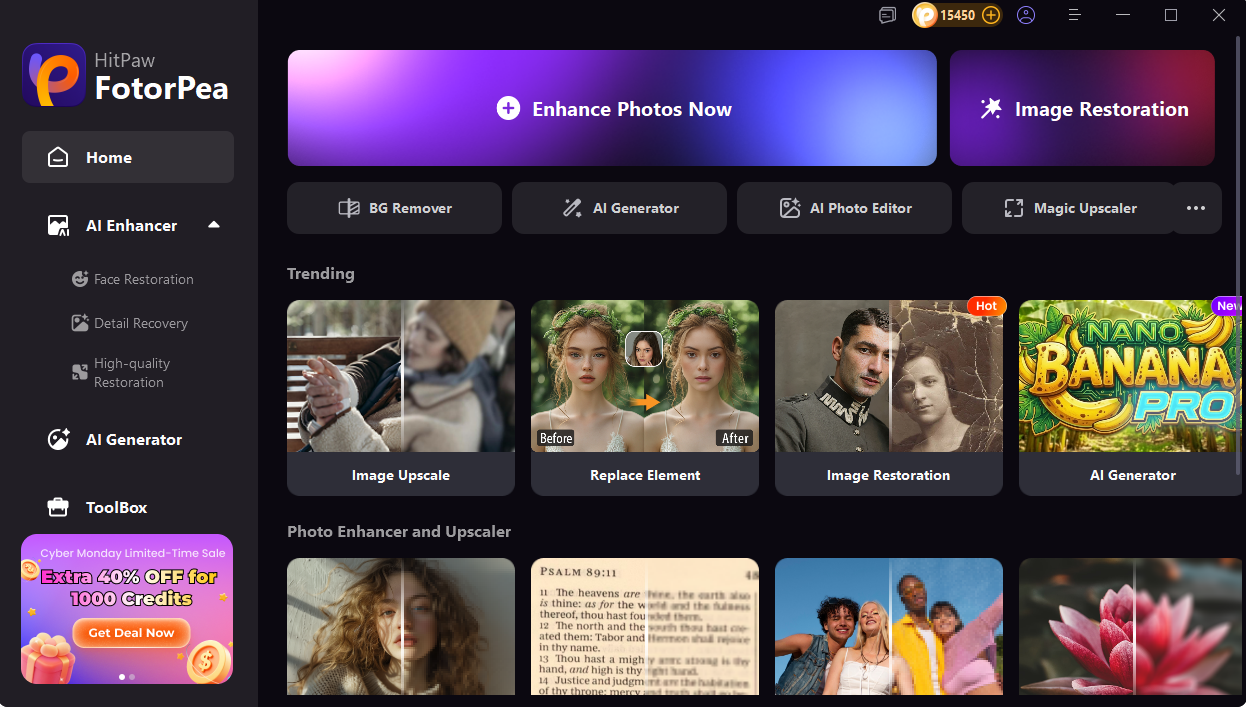
Step 1. Launch HitPaw FotorPea and click “Enhance Photos Now” to enter the enhancement workspace.




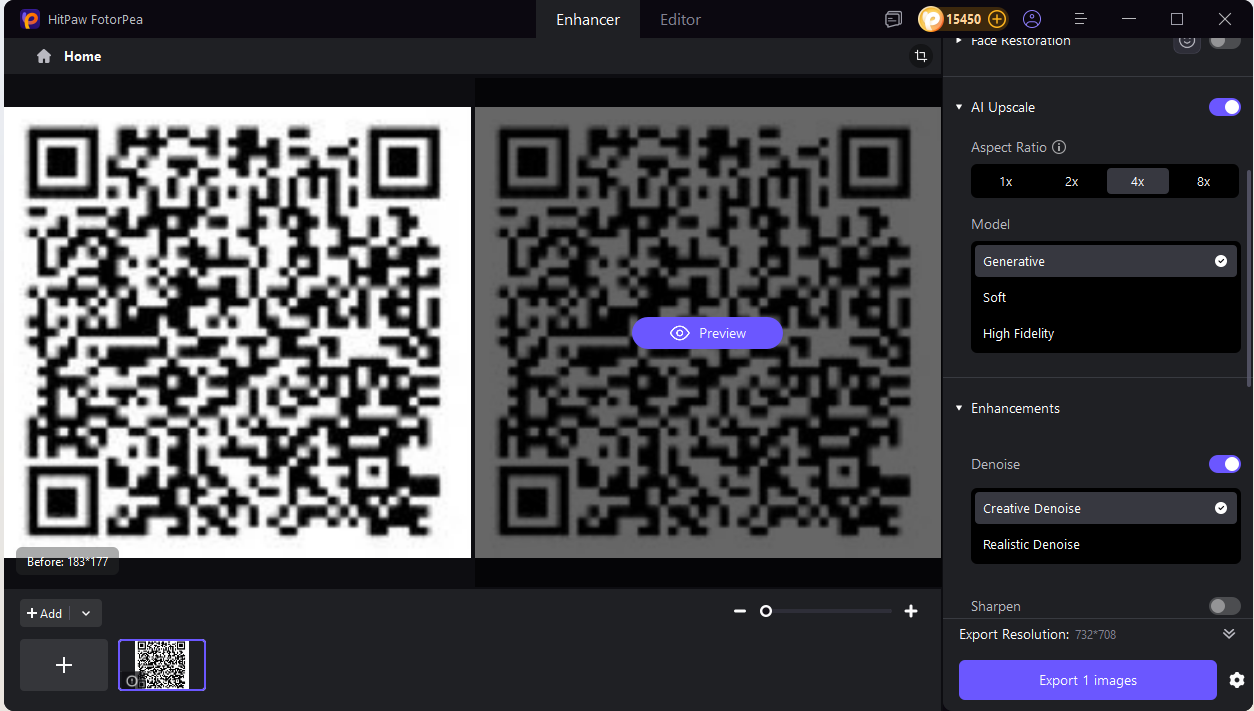
Step 2. Upload your blurry QR code image. FotorPea will automatically select the most suitable enhancement model for restoring clarity.
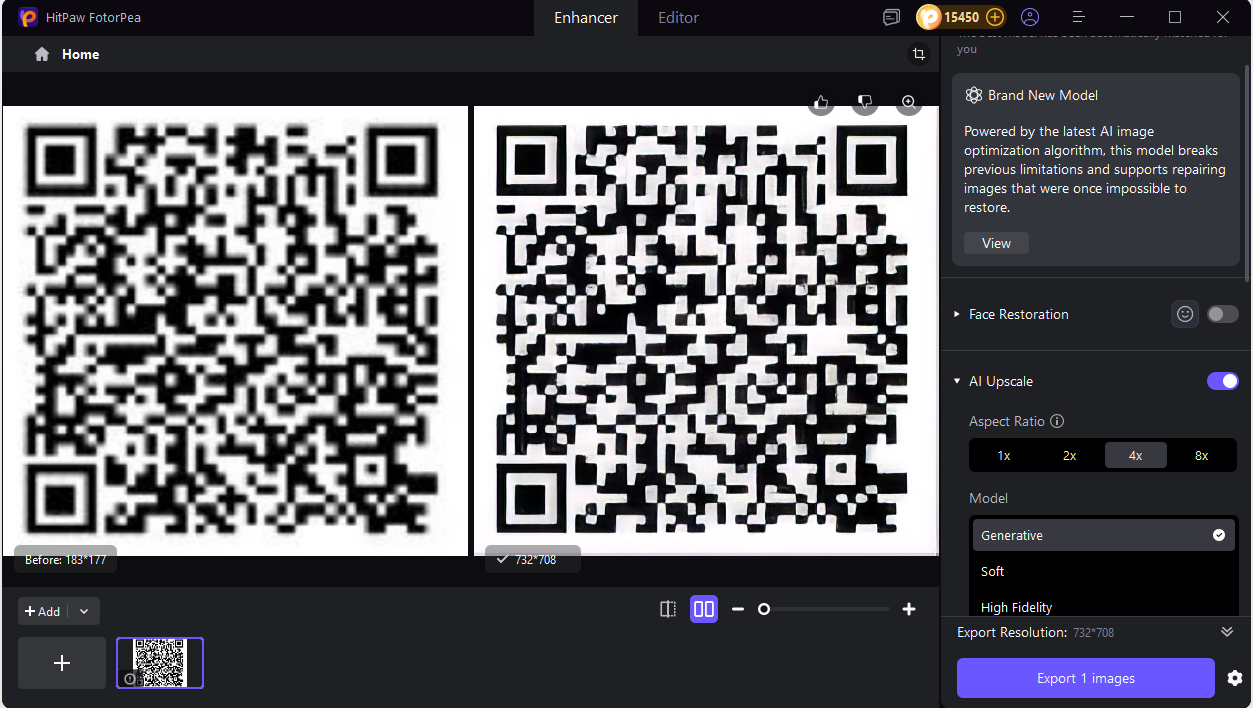
Step 3. Click Preview to check the improved result. If you’re satisfied with the restored QR code, simply click “Export 1 Image” to save your enhanced file.
Part 3: How to Troubleshoot Blurry QR Code Online
How to Enhance Image Quality in Seconds
You won't find a better QR code enhancer than HitPaw Online Photo Enhancer. It is a mind-blowing tool that only asks you to import the blurred QR code images and automatically eliminates the blur from the photos.
HitPaw Online Photo Enhancer is a QR code quality enhancer relies upon a powerful algorithm, which means the image won't lose the original resolution while eliminating the blur from the photos. It's the most convenient QR code sharpener that worth trying.
Features of HitPaw Online Photo Enhancer
- Fix blurry qr code in no time
- Allows you to fix the low quality, blurry, and pixelated images
- No installation needed, get qr code sharpener no matter on Win or Mac
- Helps you improve the quality of the images automatically
- Doesn't affect the quality of the photos while enhancing their quality
- Helps you to enlarge the photos to up to 8X
- Easy-to-use qr enhancer that doesn't require login
Steps to Fix Blurry QR Code Online
Here's the step by step guide to learn how to fix a QR code through HitPaw Online Photo Enhancer.
Step 1:First, you'll need to navigate to the official website of the HitPaw Online Photo Enhancer and then import the photo you'd like to enhance the quality of.
Step 2:Select the Magnification, Style, and Format button before hitting the Apply icon.
Step 3:Click the Preview button to review the outcome, and upon being satisfied with the results, you can download the QR code images into the desired format.
Part 4: Other Ways to Enhance QR Code Image
Although there isn't any guaranteed way to fix the QR code blurry, you can look at the methods listed below to fix blurry QR code online.
1. QR Code Generators
Some Online QR code generators come up with the built in feature to improve the clarity of the QR codes. You can import the blur QR code into the online QR code enhancer to fix the issue you've been dealing with.
2. Image Editing Software
You can also sharpen your QR code using QR code sharpener software, including the HitPaw FotorPea, GIMP, Photoshop, and online tools. You can also apply adjustments or filters to improve clarity, sharpness, and contrast.
3. Upscale the Image
You can also fix a QR code by upscaling the QR image through an image resizer. Although doing so won't improve the original quality, it allows you to scan the QR code effortlessly.
4. Retrace the Code
You can also rely upon the vector graphics software to retrace the pattern of the QR code, provided you've got an understanding of photo editing. Doing so might allow you to create a clear version of the images.
5. Contact the Source
If the organization or a business provides the QR code you've been using, you can contact them before letting them know about the situation. This way, you can ask them to provide you with a better quality version of the QR code.
Part 5: FAQs of QR Code Enhancer
Q1. What is the best QR code upscaler or QR code sharpener to improve blurry QR images?
A1. HitPaw FotorPea is one of the best tools for sharpening and upscaling low-resolution QR codes. It uses AI to restore clarity, remove blur, and enhance details automatically.
Q2. How do I scan a blurry QR code when the image is unclear or out of focus?
A2. You can first enhance the QR code using HitPaw FotorPea to restore sharpness and improve contrast. After enhancement, most QR scanner apps will read the code successfully.
Q3. Where can I find a QR code enhancer online free to improve QR code quality?
A3. You can use HitPaw Photo Enhancer, which offers a free online enhancement feature to unblur QR codes and boost overall image quality with AI.
Final Thoughts
With HitPaw FotorPea, you can easily restore blurry QR codes and barcodes on Windows and Mac without losing quality. If you need a faster online option, HitPaw Online Photo Enhancer is also a convenient choice to quickly enhance your codes.
 HitPaw VikPea (Video Enhancer)
 HitPaw Watermark Remover

Share this article:
Select the product rating:
Daniel Walker
Editor-in-Chief
This post was written by Editor Daniel Walker whose passion lies in bridging the gap between cutting-edge technology and everyday creativity. The content he created inspires audience to embrace digital tools confidently.
View all ArticlesLeave a Comment
Create your review for HitPaw articles